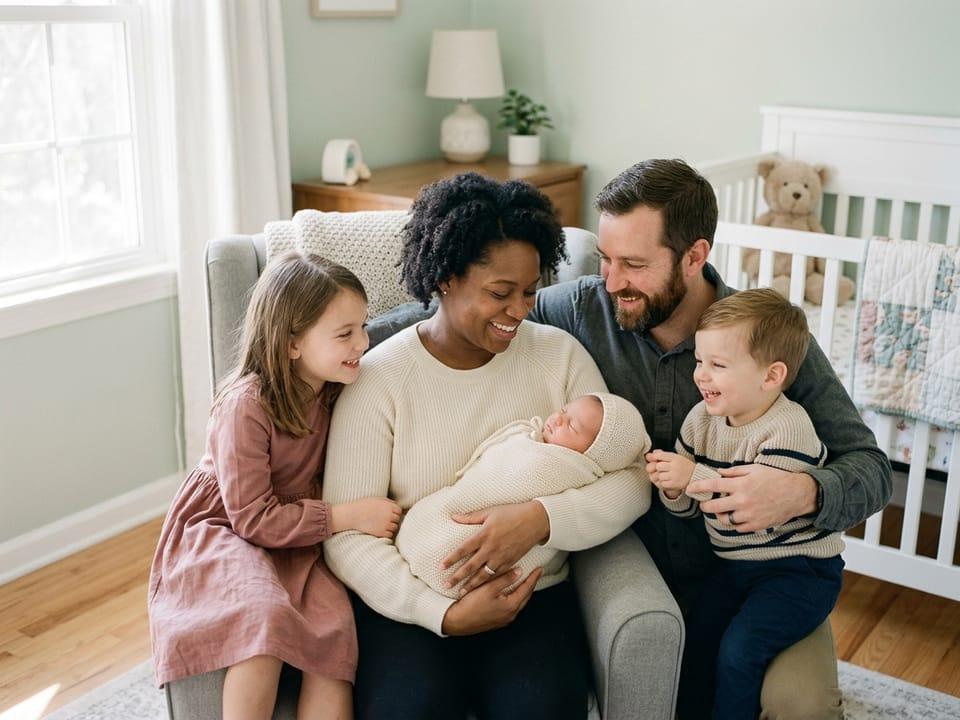
Good DIY newborn photos on a phone come down to a few settings you change before you start: the flash off, focus and exposure locked on the baby's face, 2x zoom instead of leaning in close, and burst or Live Photos for expressions that last a second. The steps below are for a recent iPhone, and most have an Android equivalent. Setting up the room is covered in A Newborn Photo Setup at Home, and positioning the baby safely in Newborn Photo Safety at Home.
Switch the flash off before you need it
An iPhone camera is set to fire the flash automatically when it decides a scene is dark, and a nursery with the curtains half drawn often qualifies. Apple's guide puts the control above the camera frame: tap Flash and choose Off. If you'd like the button to stay on screen, turn it on under Settings > Camera > Indicators.
This isn't about eye damage. Asked whether repeated camera flashes harm a baby's eyes, an ophthalmologist answering for the American Academy of Ophthalmology said there is no proven damage. The reason to switch it off is the picture. A small flash a few feet from a face lights it hard and flat and drops a sharp shadow on the sheet behind, the opposite of the soft, wrapping light that makes newborn skin look like skin. A window does the job better, with the baby turned side-on to it.
In a dim room, the iPhone may switch to Night mode instead, which brightens the shot by taking longer to capture it. Apple tells you to hold the phone still while it works, and a newborn who twitches during the capture will blur. Opening the curtains or moving nearer the window is a better fix. Daylight also shifts with the season and the latitude: in a northern winter in Dublin or Toronto, or a southern one in Christchurch, the best window light may only last through the middle of the day, so plan the photos around it.
Lock focus and exposure on the face
A small face against a white blanket confuses a camera. It averages the whole scene, so a bright sheet drags the exposure down or a dark throw pushes it up, and the skin ends up grey or washed out. Tap the baby's face to put the focus there, then drag up or down next to the focus box to brighten or darken. To stop the phone re-deciding every time the baby stirs, touch and hold on the face until AE/AF Lock appears; tapping the screen again releases it. On Google's Pixel phones, tapping the subject brings up a Lock option that does the same job, and other Android camera apps have their own version under different names.
When you're unsure, keep it a touch darker. A pale cheek or a white muslin that has gone pure white has no detail left to bring back, while a slightly dark photo can be lifted later. Editing is covered in How to Edit Newborn Photos on Your Phone.
Step back and use 2x instead of leaning in
A phone's main camera is fairly wide, and wide lenses exaggerate whatever is nearest. Get close enough at 1x to fill the frame with a newborn's face and the nose and forehead swell while the ears shrink away. Standing back and tapping 2x, or the telephoto button your model has (Apple's guide lists buttons from 2.5x to 8x depending on the iPhone, and Google's Pixel help mentions 2x and 5x), gives truer proportions. If your phone has no button for it, pinch the screen to zoom in. It also keeps the phone out of the space directly above the baby, which matters more than the picture, because a phone slipping out of your hand from that height can hurt a newborn.
Keep 0.5x for wide shots of the room, never for a face. The exception is detail: on iPhones that support macro, the camera switches to the ultra wide lens on its own when you get very close (Apple says as close as 2 centimeters), which is a lovely way to photograph toes, a curled fist or the swirl of hair at the crown. Come in from the side rather than from above, with a firm grip.
For the angle, get down to the mattress. Kneel beside the bed or lie on the floor so the lens is level with the baby, and the background becomes the sheet and the far wall instead of the ceiling light.
Burst for movement, Live Photos for the expression
Newborns yawn, stretch and flash brief sleep smiles, and a single tap usually misses the peak. On an iPhone, swipe the shutter button to the left to shoot a burst, and lift your finger to stop. Afterwards, open the burst, tap Burst and tick the frames worth keeping. If you'd rather hold a button, turn on Use Volume Up for Burst under Settings > Camera.
Live Photos, which are on by default, record what happens just before and after you tap. In the Photos app, Edit lets you slide the white frame along and tap Make Key Photo to choose a different moment as the still. Apple notes that on iPhone 15 and later, a Live Photo taken with a portrait effect loses that effect if you change the key photo. Live Photos also record sound, which you can mute in the same editing screen.
Portrait mode hides clutter, but check the edges
Portrait mode blurs what's behind the subject, which helps when the background is a laundry basket. The blur is calculated by software from depth information, though, and newborns are full of things it can misjudge: fine wisps of hair, fingers curled against a blanket, fuzzy knit textures. Zoom in on every portrait to check for smudged edges before you keep it. The Natural Light effect is the safe choice; the stage-light styles that black out the background can look harsh on a baby.
You don't have to decide on the spot. Apple's guide says that on supported models, when the depth icon appears in Photo mode, the phone has captured depth information, so the portrait effect can be applied later, and it can be switched off again in the Photos app. Shooting in plain Photo mode and adding blur afterwards keeps both options open.
Shoot in short rounds and move yourself, not the baby
The best phone sessions are short: a few minutes after a feed, once the baby has dropped into deep sleep, and then the phone goes away. Don't keep shifting the baby for a better angle; walk around them instead. When you want both parents in the frame, stand the phone on something stable and use the camera's 3, 5 or 10-second timer, as described in our self-timer guide.
These phone pictures can also be the raw material for something more polished. pokesta uses AI to turn each family member's own phone photos into a studio-style portrait in the outfit and setting you choose, at $1 per photo with the first one free.
If you remember one thing, make it the order: flash off, lock on the face, step back to 2x, then shoot more frames than you think you need.
References